




Struggling to get interviews?
There are three ways to add your resume to LinkedIn:
- Use LinkedIn’s Easy Apply feature
- Upload and save resumes to apply faster
- Use the Featured section to share your resume publicly

Looking for the opposite? We also have a guide on how to put LinkedIn on your resume.
Method 1: Use LinkedIn’s Easy Apply feature
Use Easy Apply to upload a tailored resume for each job application. This method keeps your resume private and lets you customize it for each role.
Follow these steps to upload your resume to LinkedIn during the job application process:
Step 1: Find an “Easy Apply” job listing and click on it to see the full job description.
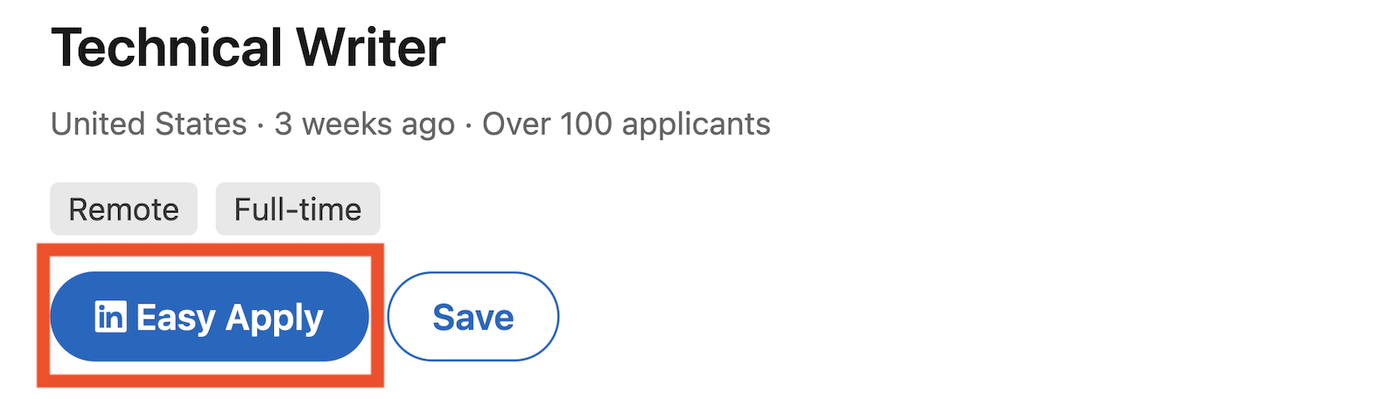
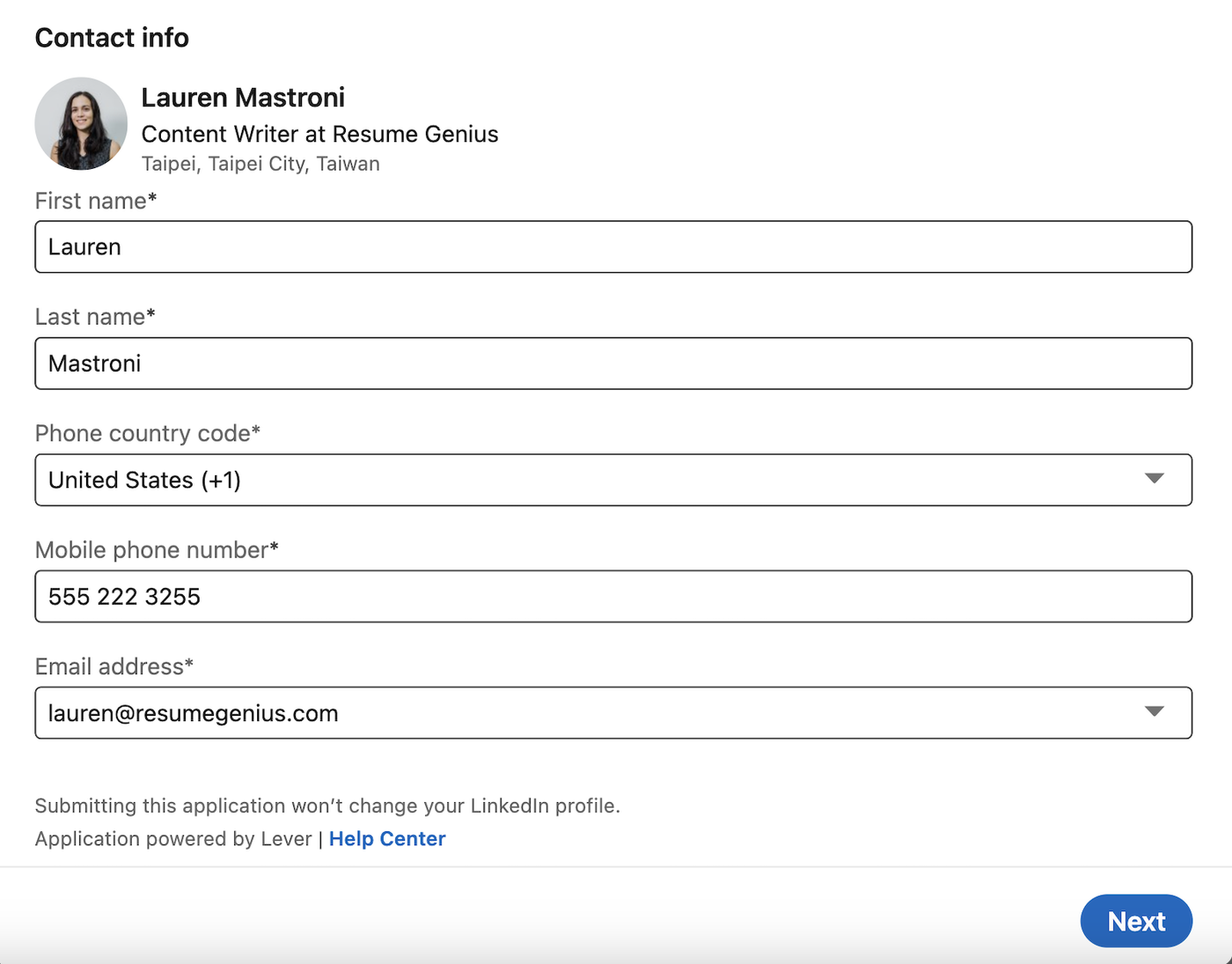
Step 2: Click the “Easy Apply” button and complete the required fields. If the button just says “Apply”, you won’t be able to upload a resume via LinkedIn but will have to apply through the company website.
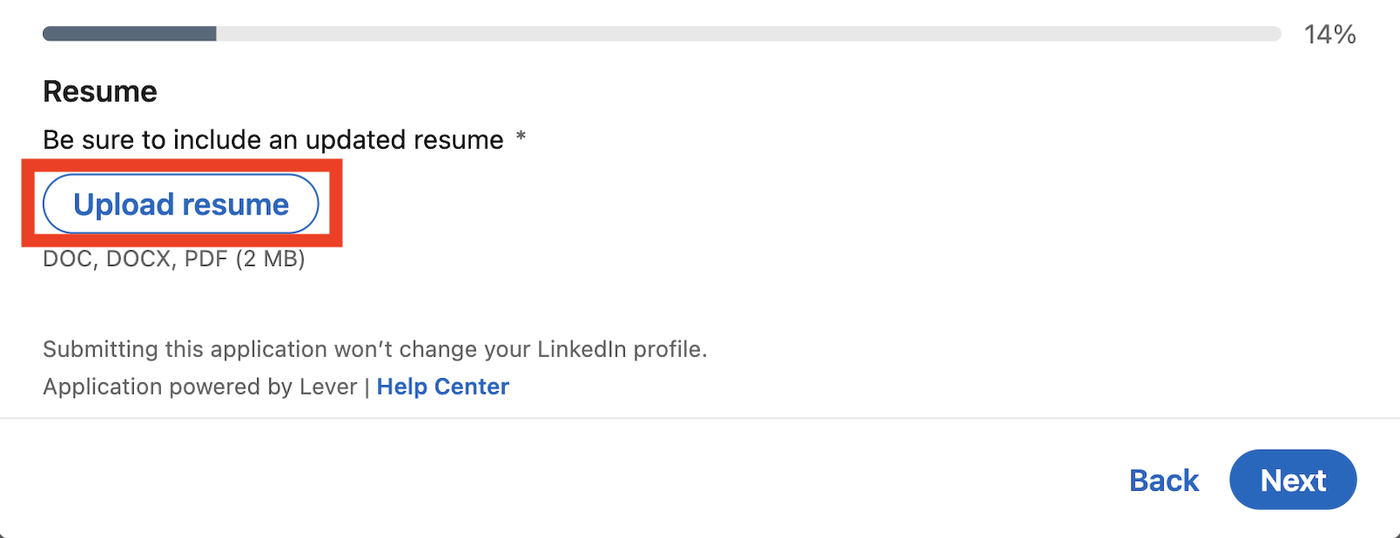
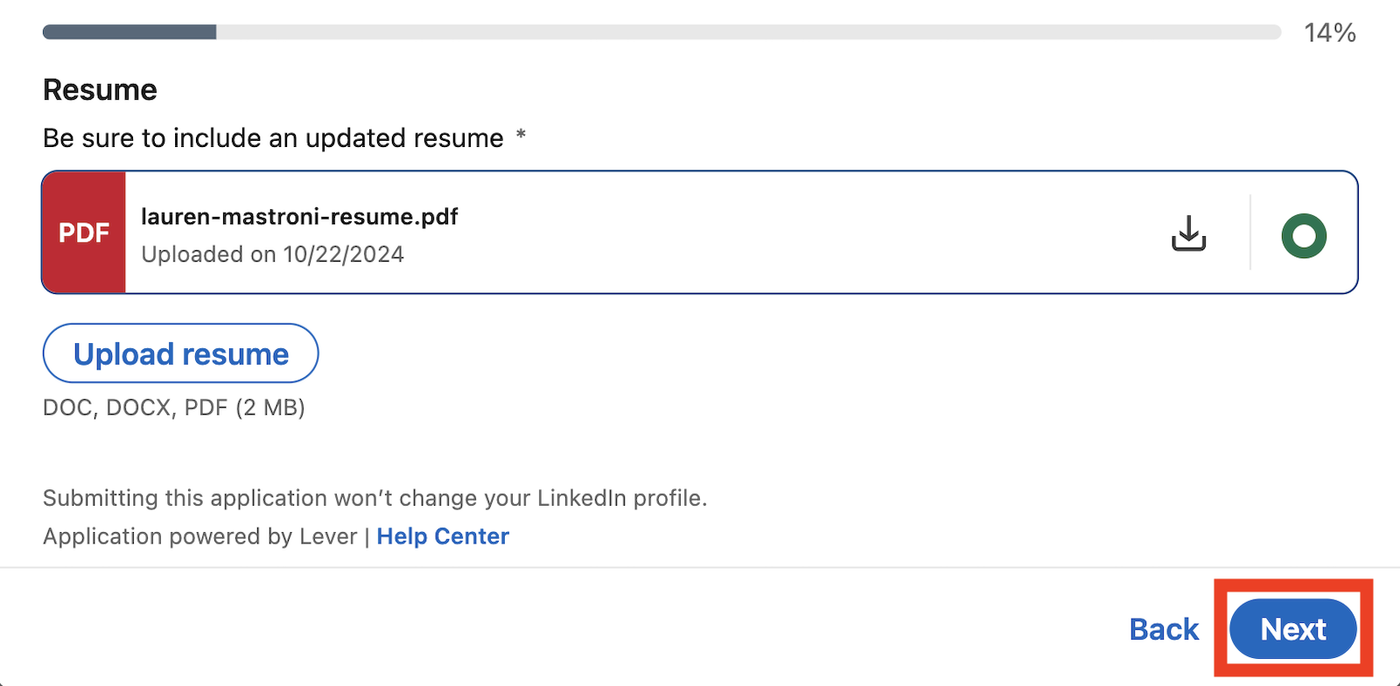
Step 3: Select “Upload resume” to add your resume file.
Step 4: Click “Next” once you’ve uploaded your resume to answer any remaining questions and submit your application.
Method 2: Upload and save resumes to apply faster
Save multiple resumes in your account to apply quickly without uploading a file each time. This method works best when applying to several similar roles.
While we generally advise applicants to submit a targeted resume for each job application, this feature can be helpful if you’re applying for many jobs.
To upload a general resume to LinkedIn, follow these steps:
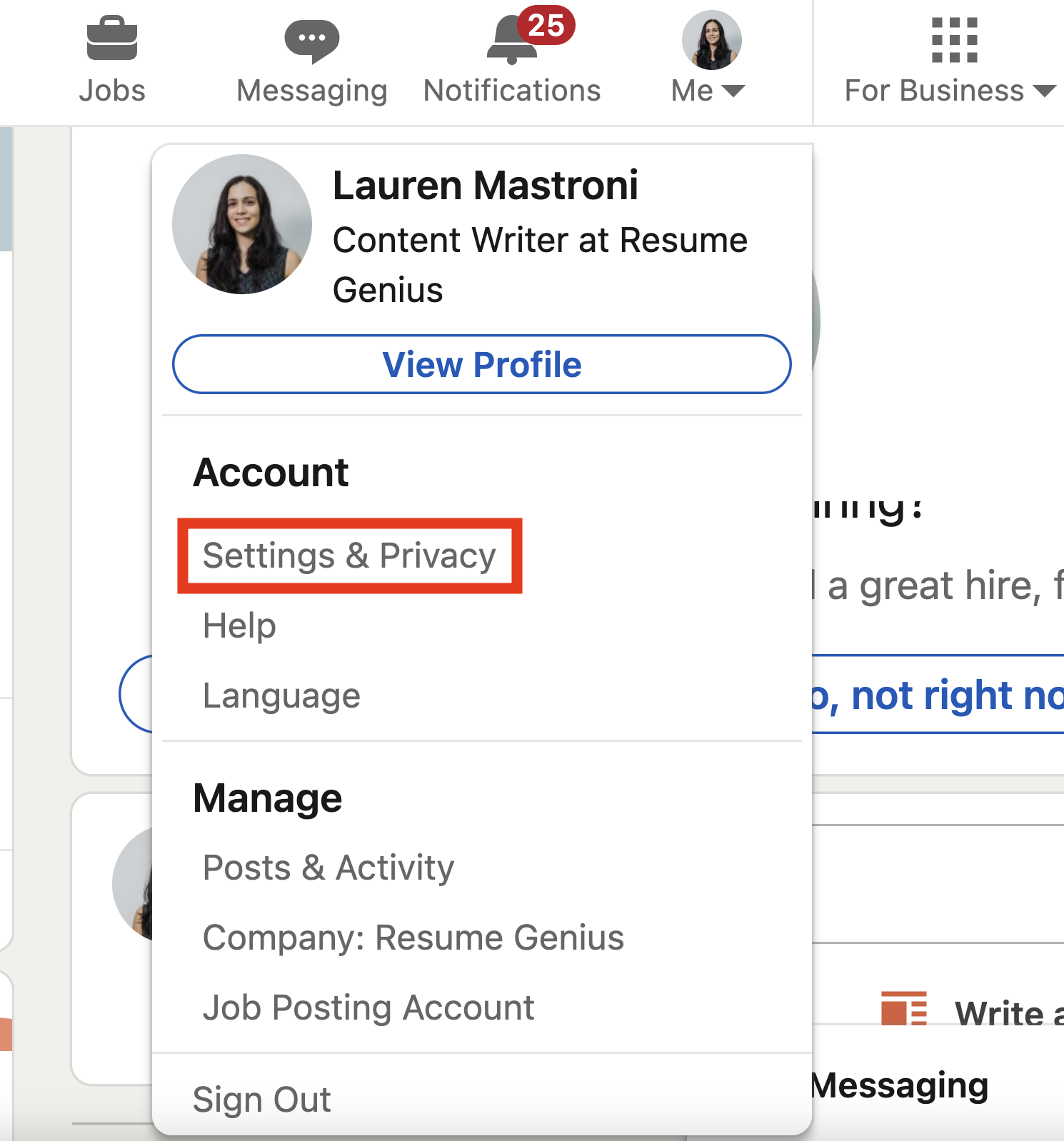
Step 1: First, click on “Me” under your profile picture in the top right corner.

Step 2: Choose “Settings & Privacy” from the dropdown menu.
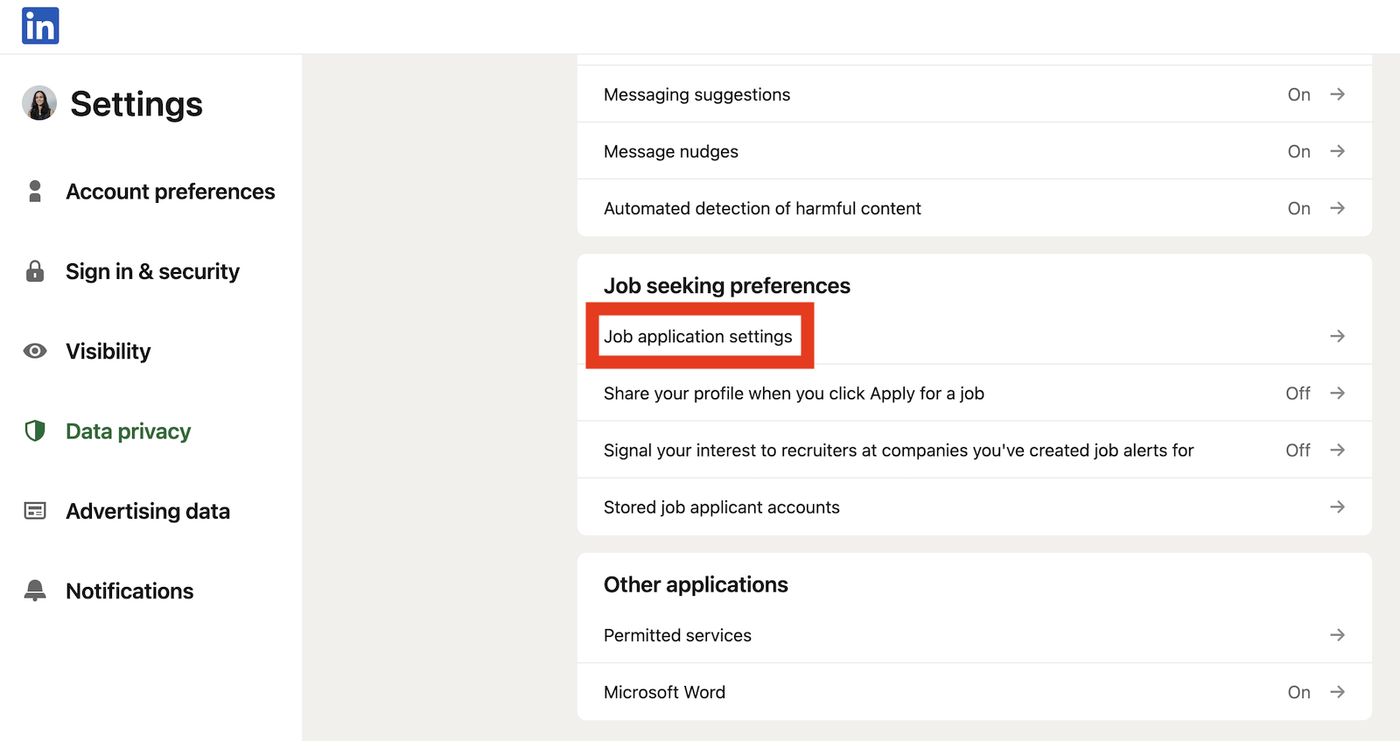
Step 3: Click on “Data Privacy” from the sidebar on the left, then scroll down and click on “Job application settings”.
Step 4: Press the “Upload resume” button to upload a new file.
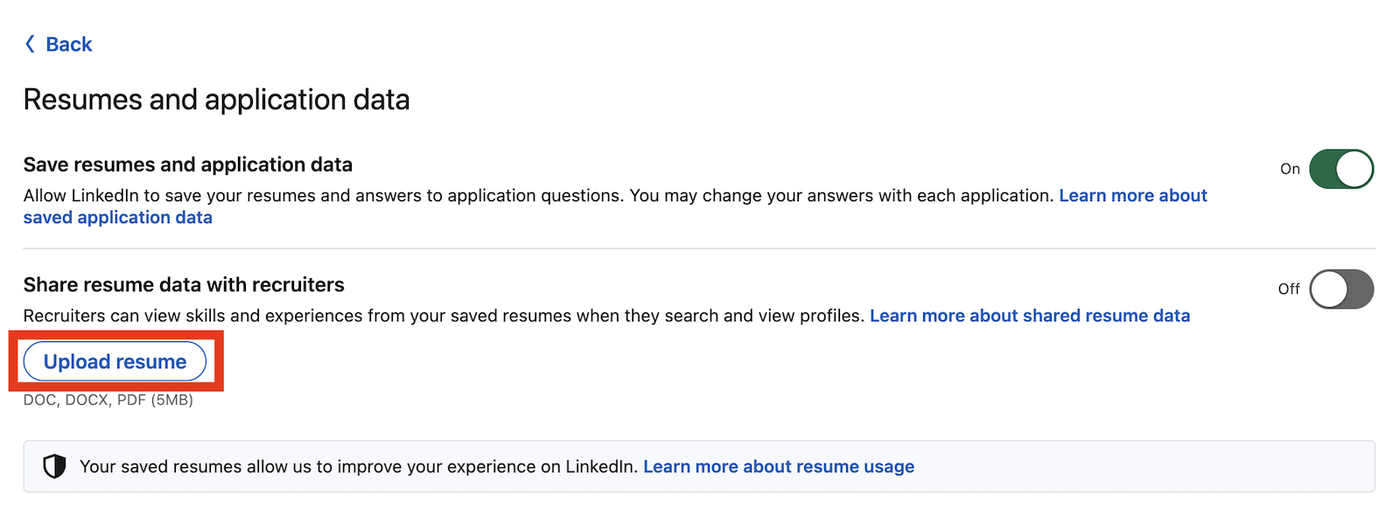
You can easily manage your saved resumes under LinkedIn’s resumes and application data page.
From this page, click on the three dots next to any of your resumes to delete or download them.
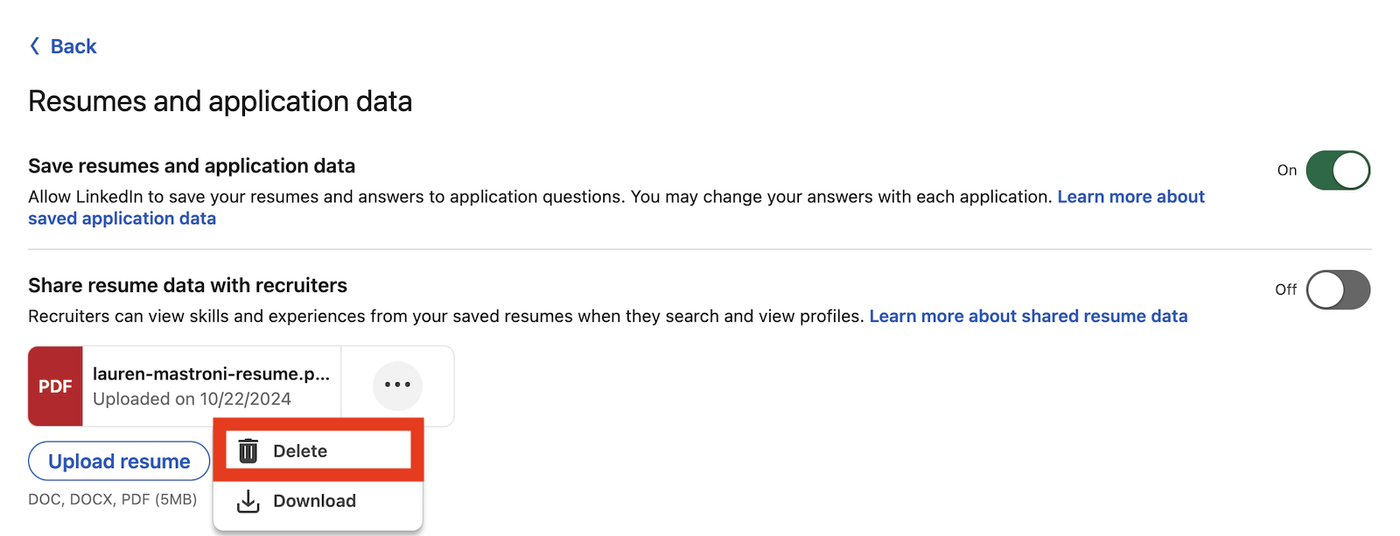
If you want to replace these files with an updated resume, you can then click the “Upload resume” button to upload a different file.
Method 3: Use the Featured section to share your resume publicly
Add your resume to your profile if you want recruiters to view or download it directly. This method makes your resume public, so remove personal contact details first.
Before you do, make sure to remove personal information like your phone number, address, and email.
Then, follow these steps below to upload your resume to a featured section on your profile:
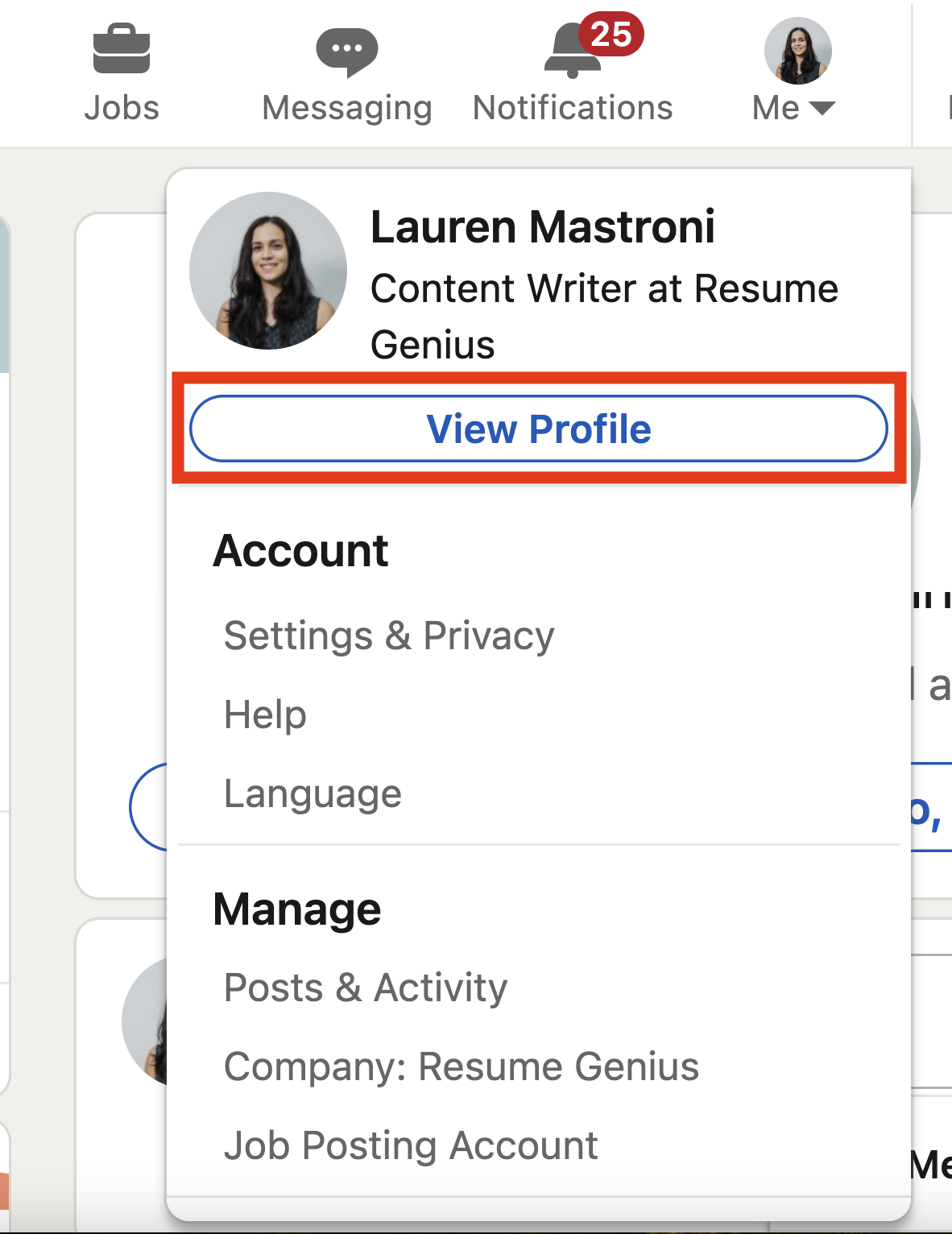
Step 1: Select “View Profile” from the dropdown under “Me” in the top right corner (below your profile picture).
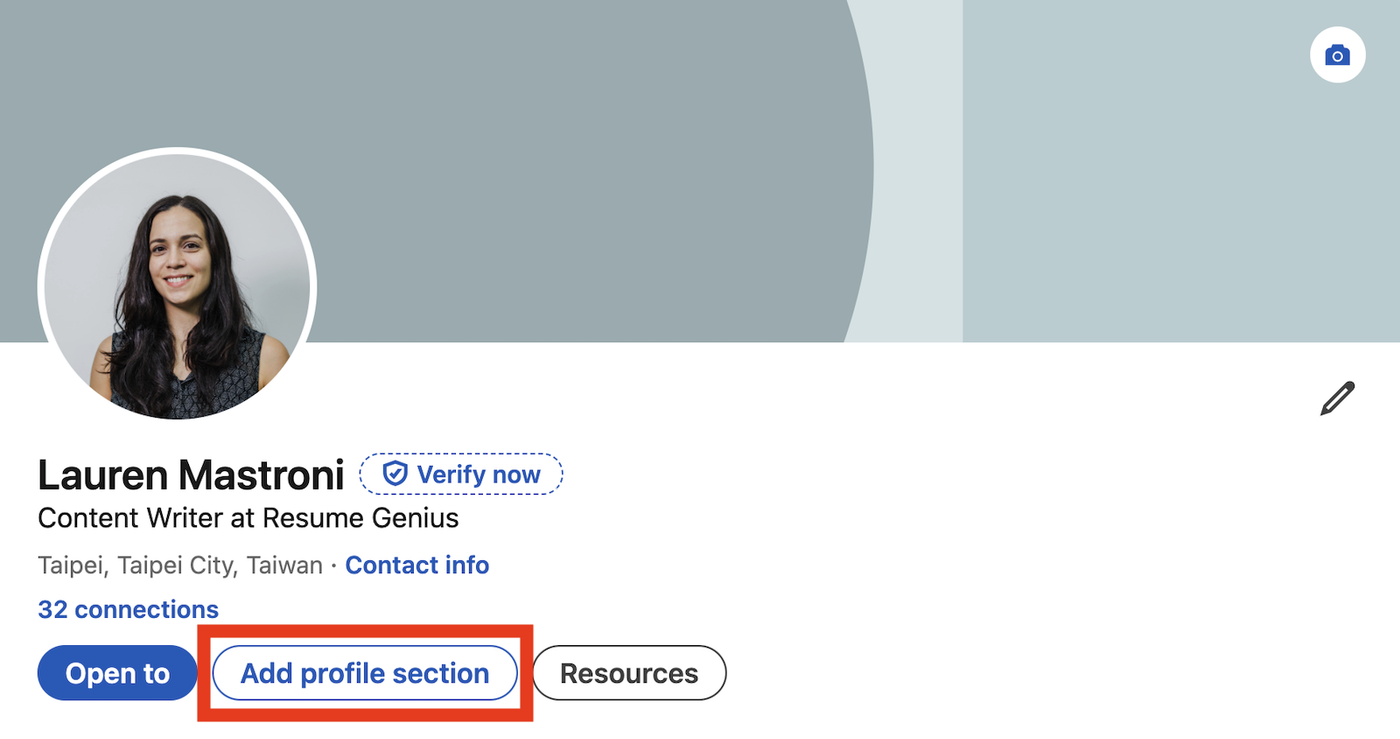
Step 2: Click on “Add profile section” to upload documents to your profile.
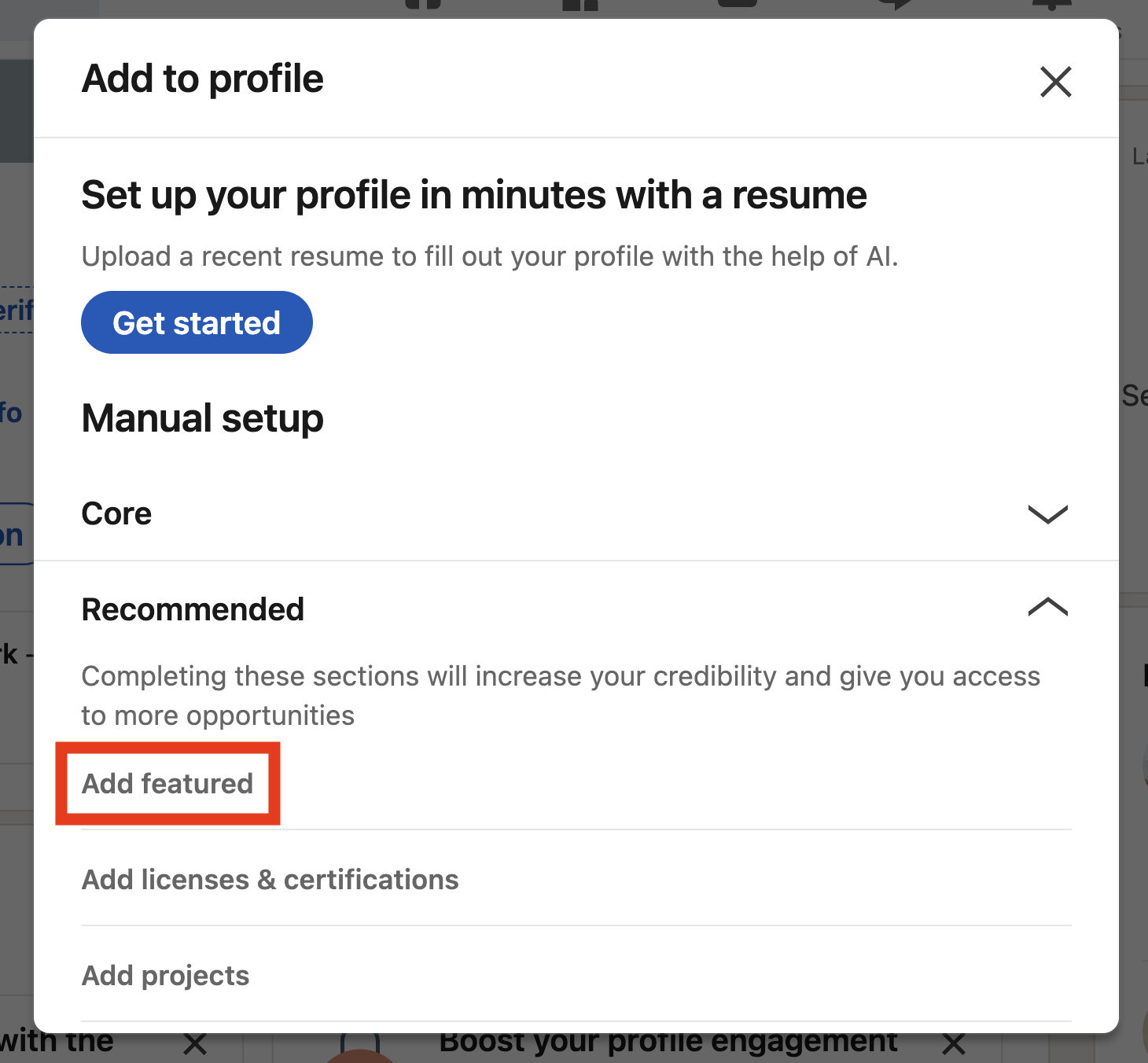
Step 3: Click on “Add featured” from the dropdown list for the “Recommended” section.
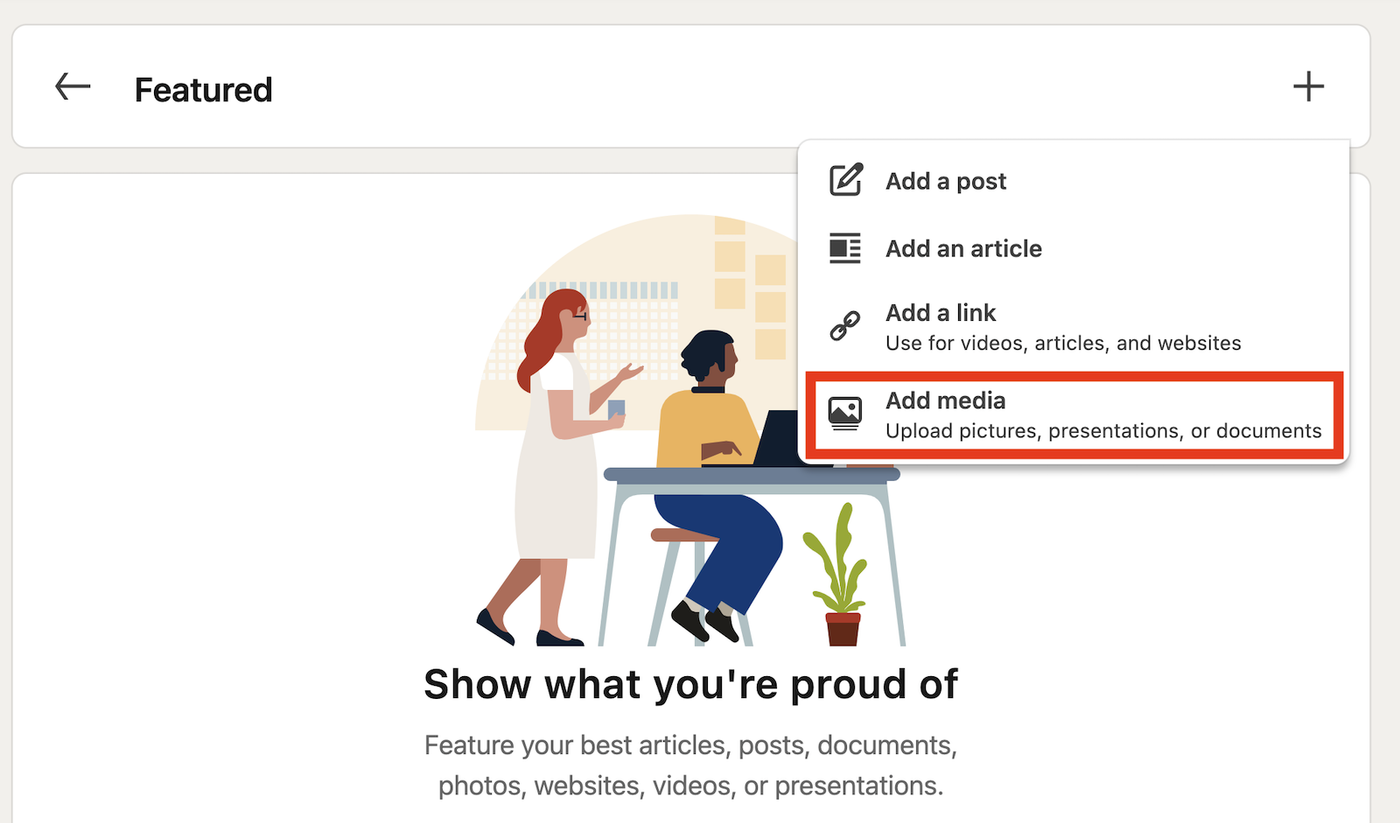
Step 4: Click on the plus sign on the right, then select “Add media” to upload your resume in PDF format.
Step 5: Click “Upload” once you’ve found and selected the correct file.
After you’ve completed these steps, your resume will be visible on the Featured section of your LinkedIn profile for anyone to view and download.
If your resume isn’t in PDF format, it will be more difficult to view on your profile. Follow these instructions for saving your resume as a PDF.
Frequently asked questions
Here are answers to common questions about adding your resume to LinkedIn:
Should you upload your resume to LinkedIn?
Adding your resume to LinkedIn can help recruiters find you faster, but it also comes with tradeoffs:
Pros
- Increases visibility to recruiters
- Makes applying faster
- Shows you’re open to opportunities
Cons
- Your resume may be outdated if not updated regularly
- Public uploads can expose personal information
- Reduces customization if reused
Can recruiters see my resume on LinkedIn?
Recruiters can only see your resume on LinkedIn if you choose to upload it in a way that makes it visible. If you add your resume to the Featured section of your profile, anyone who views your profile, including recruiters, can open and download it.
If you upload your resume when applying for a job using Easy Apply or save it in your account settings, your resume is only visible to recruiters for that specific job application. In all cases, your LinkedIn profile itself acts as a public version of your experience, so keep it updated even if you don’t upload a resume file.
Should I upload my resume as a PDF or Word file?
Upload your resume as a PDF whenever possible. PDFs preserve your formatting, so your resume looks the same on any device or operating system. This ensures employers can view your layout, fonts, and spacing exactly as intended.
Use a Word document only if a job posting specifically asks for it. Some employers use applicant tracking systems (ATS) that prefer .doc or .docx files, but for LinkedIn uploads and general visibility, a PDF is the more reliable choice.
Can I upload multiple resumes to LinkedIn?
Yes, you can upload multiple resumes to LinkedIn, but only in certain areas. In your application settings, LinkedIn allows you to store several resumes for future use, making it easier to apply to different roles without uploading a new file each time.
Each saved resume can be tailored to a specific type of job. However, only one resume can be used per application, and if you upload a resume to your profile’s Featured section, you should choose your most relevant or general version.
About the Author

5
Years of Experience
177
Articles Written
Lauren Mastroni is a Digital Content Writer dedicated to creating engaging content and providing actionable advice that empowers people in their job searches. An enthusiastic contributor to the Resume Genius team, Lauren has a passion for developing valuable resources for job seekers.
Lauren holds an M.S. in Psychology from University of Derby and currently lives in Taipei, Taiwan. She enjoys learning all she can about the career space, and is committed to helping job seekers of all experience levels navigate the job hunt and advance their careers.
She has been cited in HuffPost, Newsweek, Forbes, and more.
You can reach Lauren at lauren@resumegenius.com.







Facebook
Twitter
Linkedin
Pinterest
Reddit
Copy link