
• Skip to Content
  • Skip to Sidebar
  • Skip to Footer
Resume Genius home
  • View All Free Resume Templates
    Professional Designs
    • Basic
    • Creative
    • Modern
    • Minimalist
    File Types To Download
    • Word
    • Google Docs
    • PDF
    • Pages
    Formats
    • Chronological
    • Functional
    • Combination
    • Infographic
    Situational Templates
    • ATS
    • Entry Level
    • Picture
    • Blank

    Build your resume with a professional template

    Choose one of our ATS-friendly templates, pick your favorite layout and color, and apply for jobs within the app. Test it out today.

  • View All Resume Examples
    For Students
    • High School
    • Internship
    • College
    • Student CV
    By Experience
    • No Experience
    • Mid-Career
    • Manager
    • Executive
    Top Industries
    • Teaching
    • Nursing
    • Administrative Assistant
    • Customer Service
    • Cashier
    • Engineering
    • Graphic Design
    • Server

    Struggling to fill in your resume?

    Our builder's database of expert-written experience bullets plus AI-powered content suggestions transforms a blank page into a perfectly tailored resume. Try it now.

  • Visit the Genius Blog
    Tools
    • AI Resume Generator
    • ATS Resume Checker
    • Resume Summary Generator
    • Bullet Point Generator
    Resumes
    • How to Make a Resume for Any Job in 2026
    • The Best Resume Format for 2026
    • How to Put Skills on Your Resume
    • 40+ Professional Resume Summary Examples
    Cover Letters
    • Cover Letter Templates to Download
    • Cover Letter Examples for All Job Applications
    • How to Write a Cover Letter for a Job in 2026
    • Cover Letter Format: Template & Examples
    CVs
    • Professional CV Templates
    • 400+ CV Examples for Everyone
    • How to Write an Academic CV
    • CV Examples for Students

    Make a resume that stands out

    Our resume builder is powered by decades of industry expertise and the latest job-search tech. Get started now and give your application an edge.

    • The resume genius builder Make a professional resume in just a few minutes.
    • AI Cover Letter Generator Write custom cover letters for every application.
    • Professional CV Maker Create a detailed academic or professional CV.
    Read what our customers are saying about us 10 Best Resume Builders of 2026
  • Pricing
Login Build My Resume

Resume HelpHow to Write a ResumeFormatting

Resume Formatting: Margins, Spacing, & Fonts

Lauren Mastroni, a staff writer at Resume GeniusWritten By Lauren MastroniCareer Expert & Senior Digital Content Writer
Headshot of Conrad BenzReviewed By Conrad BenzContent Manager & Hiring Manager
Lauren Mastroni, a staff writer at Resume Genius

Lauren Mastroni

Career Expert & Senior Digital Content Writer

5 years of experience

Lauren Mastroni is a Senior Digital Content Writer at Resume Genius, where she creates data-driven career content and actionable job search advice. With a background in academic research, she brings...

View Profile
Updated September 14, 2026
Make My Resume NowUpload My Existing Resume
Graphic showing a resume that is split into six numbered segments that demonstrate proper resume formatting, set against a light blue background.
Table of Contents
  • Resume Formatting: Margins, Spacing, & Fonts
    • Resume formatting guidelines
      • Use 1″ margins
      • Select a professional, easy-to-read font
      • Use consistent font sizes
      • Divide your information into clear sections
      • Use bullet points for your work experience
      • Remember to left-align the content
      • Keep your resume an appropriate length
      • Keep your spacing consistent
      • Stick to a consistent date format
    • Resume formatting mistakes to avoid
    • Proper resume formatting template
    • Frequently asked questions (FAQs)
      • Should I use a template or format my resume from scratch?
      • How do I format a resume in Google Docs?
      • How do I format a resume in Word?
      • How do I format a resume for ATS?
      • What file format should my resume be in?
    • Final resume formatting checklist
3 resume templates available in the Resume Genius builder with a banner explaining how quickly you can make a resume

Struggling to get interviews?

Make a professional resume

Share:

  • Copied

Good formatting can make your resume easier to read and more professional, while simple mistakes in layout or file formatting could keep your application from making it past the first screening.

Resume formatting: Key takeaways
  • Left-align the content
  • Use 1″ margins
  • Select a professional, easy-to-read font
  • Divide your information into clear sections
  • Use bullet points to explain your work experience
  • Keep your resume an appropriate length (one page for most candidates)

Resume formatting guidelines

Show your attention to detail and professionalism by following these basic resume formatting guidelines:

Use 1″ margins

In most cases, you should use 1” margins on your resume. However, anywhere between ½”–1″ is acceptable. You may prefer to use narrower margins if you have years of work experience and need to fit more information on the page.

Select a professional, easy-to-read font

The font used on your resume should be professional and easy to read. Generally, this means sticking to commonly used fonts.The most important thing is that your font choice doesn't distract from your qualifications.

Here are some of the best fonts to use on your resume:

  • Times New Roman
  • Cambria
  • Georgia
  • Garamond
  • Helvetica
  • Calibri
  • Didot
  • Arial Narrow
  • Trebuchet MS
  • Lato

Use consistent font sizes

The font size used for the body content of your resume should be 10–12pt, depending on the font you're using and your space requirements. Your name and section headers should be larger to help visually break up your resume into sections.

Divide your information into clear sections

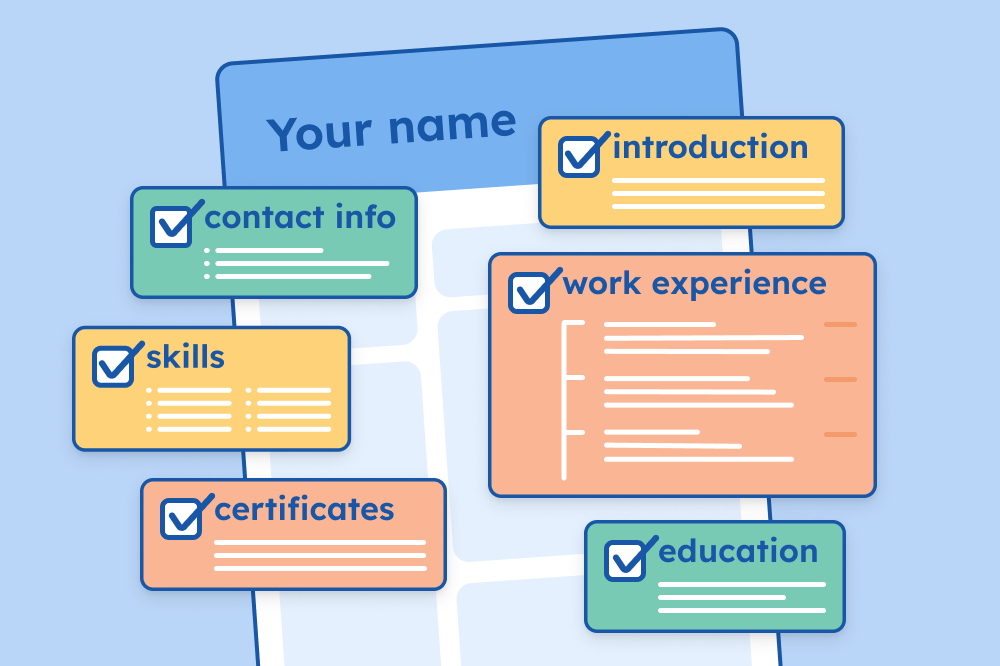
All the information on your resume should be divided into clear sections with standard names like “Summary” and “Work Experience.” This makes it easier for both employers and ATS software to scan through and find the information they're looking for.

At a minimum, here are the sections you need to include:

  • Header
  • Introduction
  • Work experience
  • Skills
  • Education

If you want to highlight more information on your resume, you can add additional sections for things like:

  • Volunteer work
  • Projects
  • Certifications
  • Awards
  • Languages

Use bullet points for your work experience

Under each work experience entry, include 3–5 bullet points that highlight some of your key professional accomplishments. Bullet points make your resume easier to scan and help recruiters quickly identify your most relevant skills and achievements.

Try our AI bullet point generator to speed up your writing process:

AI Resume Bullet Point Generator

Struggling to write your resume? Make clear, achievement-oriented bullet points for your resume in seconds with our free AI bullet point generator.

Job title Step 1 / 2
    List of resume bullet points Step 2 / 2
      Copy Text Copy Copied

      Use these work-experience bullet points to make a resume that lands you interviews.

      Build My Resume Now

      Remember to left-align the content

      For a clean, easy-to-scan layout, keep your main resume content left aligned. This includes section headings, job titles, company names, education details, and bullet points.

      However, you can right-align minor details like employment dates, locations, or other supporting information to help organize your resume and make better use of the available space. Just make sure these elements don't make the overall layout feel uneven or difficult to follow.

      Keep your resume an appropriate length

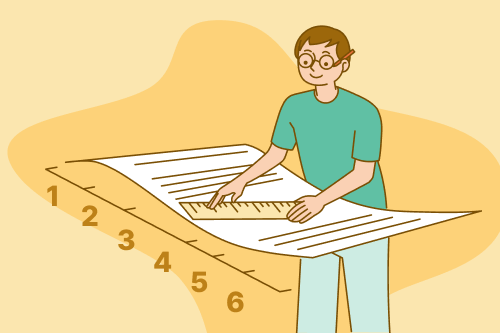
      Aim to keep your resume concise and focused on your most relevant experience. For most job seekers, the ideal resume length is 1–2 pages. One page is fine if you’re a student, recent graduate, or have only a few years of experience. Two pages may be necessary if you have a lot of relevant experience.

      Don’t leave out important information just to squeeze your resume into less space, but avoid adding filler to make it longer. If your resume runs over one page, make sure every section and bullet point adds value and is relevant to the job you’re applying for.

      Keep your spacing consistent

      Use consistent spacing throughout your resume to create a clean, organized layout. Keep similar amounts of space between sections, headings, job entries, and bullet points so your resume is easy to scan.

      Avoid adding extra space in some areas while cramming others together. Consistent spacing helps separate different sections without making your resume look cluttered or unnecessarily spread out.

      Stick to a consistent date format

      Use the same date format throughout your resume to keep your formatting clean and professional. For example, if you write “January 2024” for one position, use the same format for all your other jobs, rather than switching between “Jan. 2024,” “01/2024,” and “January 2024.”

      Choose a format that’s easy to read and stick with it across your work experience, education, and other dated sections. Consistent dates make your resume easier to scan and give the whole document a more polished appearance.

      Resume formatting mistakes to avoid

      Poor resume formatting can distract from your experience and skills. Avoid these common errors to ensure your resume gets attention for the right reasons (like your experience and skills):

      • Inconsistent formatting: Switching between font styles, sizes, date formats, or spacing makes your resume look messy and unprofessional.
      • Complicated designs: Graphics, borders, and multiple columns can distract and take attention away from your content, and make your resume harder for ATS software to scan.
      • No clear section hierarchy: If your headings aren’t clear, recruiters can’t quickly assess your qualifications and may lose interest in your application.
      • Overcrowding the page: Filling every inch with text leaves no white space, making your resume overwhelming and hard to scan.
      • Inappropriate font or font size: Fonts that are too small, too large, or hard to read can make your resume difficult to navigate and appear less professional.

      Proper resume formatting template

      Here's a resume template with proper formatting that you can copy and paste into Google Docs or Microsoft Word and fill out with your own information. This template is designed to help you stick to the basic resume formatting guidelines mentioned above.

      FIRST AND LAST NAME

      Email: youremail@gmail.com | Phone: 995 555 555 | Address: 1234 Lincoln Rd. Harrisburg, PA 17101 | Linkedin: linkedin.com/in/yourprofile


      INTRODUCTION

      Dedicated [industry] professional with [# of years] years of experience. Looking to leverage my abilities in [relevant skills] to fill the [position name] position at [Company Name]. An adaptable employee seeking to help achieve [Company’s Name]’s goals and take on new challenges as soon as possible.

      WORK EXPERIENCE

      Most Recent Job Title / Start Date – End Date
      Employer Name / Location

      • Include a bulleted list of your accomplishments
      • Add hard numbers to these bullet points to illustrate your impact

      Earlier Job Title / Start Date – End Date
      Employer Name / Location

      • List relevant accomplishments from an earlier job
      • If you no longer perform this job, use past tense verbs to describe your experience

      EDUCATION

      Degree Name / Major
      University, Location / Start Date – End Date

      SKILLS

      • List relevant skills
      • Include a range of hard skills and soft skills
      • Mention the specific names of software or tools you’re able to use

      OPTIONAL SECTIONS

      • Here’s where you can add any other relevant information
      • For example, this section could be for languages, publications, certifications, licenses, or volunteer experiences

      Frequently asked questions (FAQs)

      Should I use a template or format my resume from scratch?

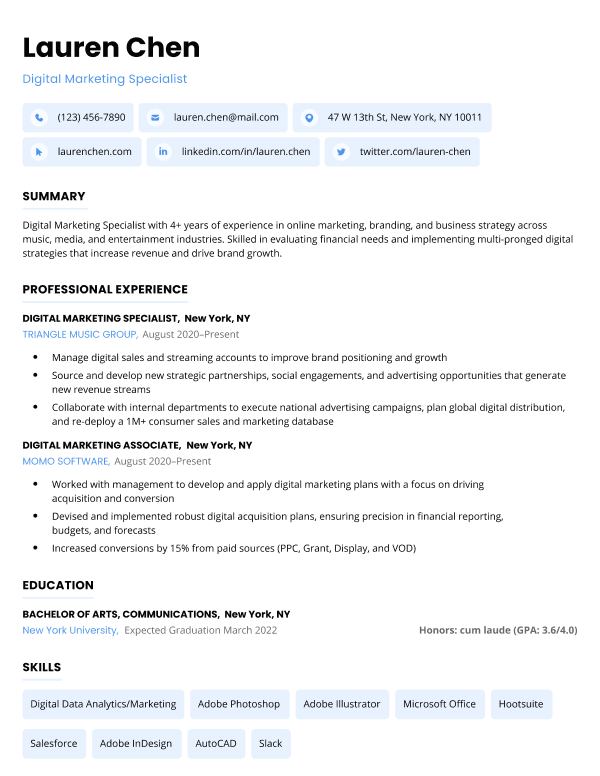
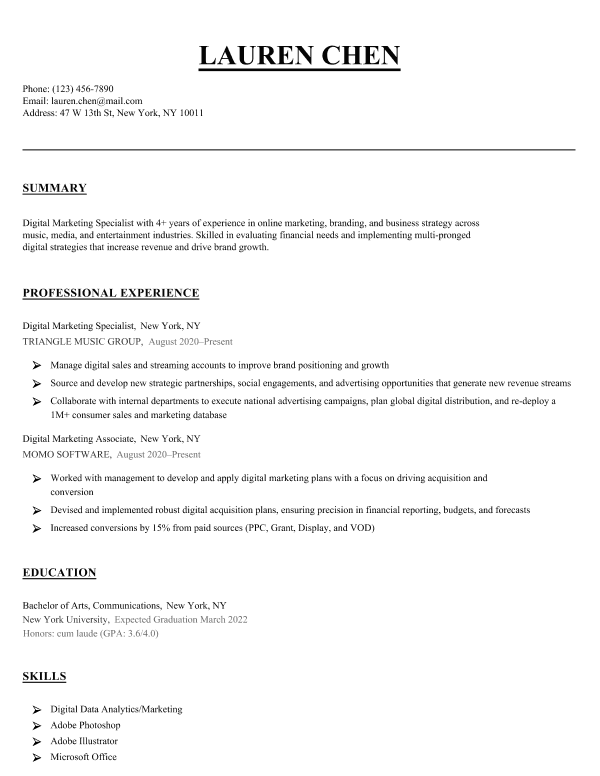
      It depends on what you need. Using a resume template can be a great shortcut to creating a well-organized, professional resume. Resume templates offer a clear structure with consistent formatting, which helps highlight your experience, education, and skills effectively.

      On the other hand, formatting your resume from scratch allows for complete customization. This can be useful if you want to create a unique layout that better reflects your background or target industry. If you choose to format your resume from scratch, take extra care to make sure everything looks consistent.
      How do I format a resume in Google Docs?

      To format your resume in Google Docs:

      1. Open Google Docs and select Template gallery.
      2. Choose a resume template from Google Docs’ available options, or open one of our Google Docs resume templates for a more professionally designed layout.
      3. Replace the placeholder text with your contact information, work experience, education, skills, and other relevant sections.
      4. Customize the formatting by adjusting the font, margins, spacing, and headings to create a clean, consistent layout.
      5. Download your finished resume as a PDF unless the employer specifically requests another file format.

      How do I format a resume in Word?

      To format your resume in Word:

      1. Open Microsoft Word and select New to browse the available templates.
      2. Choose a resume template from Word’s options, or use one of our free Word resume templates.
      3. Replace the placeholder text with your contact information, work experience, education, skills, and other relevant sections.
      4. Adjust the formatting as needed, including your font, margins, section headings, and spacing.
      5. Save your resume as a PDF unless the employer specifically requests a Word document or another file format.

      How do I format a resume for ATS?

      Follow these steps to make sure your resume is ATS-friendly:

      1. Use a simple layout. Choose an ATS-optimized resume template design and avoid excessive graphics, text boxes, tables, or other complicated formatting.
      2. Use standard section headings. Label sections with familiar headings like “Work Experience,” “Education,” and “Skills.”
      3. Choose a readable font. Use a professional, easy-to-read font such as Arial, Calibri, or Times New Roman.
      4. Include relevant keywords. Review the job description and naturally incorporate relevant skills, qualifications, and job-specific terms into your resume.
      5. Use standard bullet points. Keep your work experience easy to scan and avoid decorative symbols that may not parse correctly.

      What file format should my resume be in?

      PDF is generally the best file format for your resume unless the job posting or employer specifically asks for a different format. Saving your resume as a PDF preserves your fonts, spacing, and layout, so it should look the same when the recruiter opens it.

      Final resume formatting checklist

      Before you send off your application, here's a final checklist to make sure your resume formatting is correct:

      Resume formatting checklist

      Is your contact information accurate?

      Does your resume NOT include sensitive personal information?

      Does your resume fit on one page (or two pages if you’re highly experienced)?

      Is your information easy to read (fonts are above 10pt, sections aren't crowded)?

      Is the design of your resume appropriate for the position you’re applying for?

      Did you include all relevant sections on your resume?

      Did you include quantified achievements in your work experience section?

      Does your resume address the requirements stated in the job ad?

      Is your resume free of typos and grammatical errors?

      Is all of your information clearly formatted and professional?

      Are all your sections properly aligned (nothing looks pushed off to the side)?

      Build My Resume
      Our resume builder can make you a resume in as little as 5 minutes. Pick the template you want, and our software will format everything for you.

      About the Author

      Lauren Mastroni, a staff writer at Resume Genius
      Lauren Mastroni
      Career Expert & Senior Digital Content Writer
      5Years of Experience
      240Articles Written
      9Articles Reviewed

      Lauren Mastroni is a Senior Digital Content Writer at Resume Genius, where she creates data-driven career content and actionable job search advice. With a background in academic research, she brings a research-focused approach to topics like resume writing, interviewing, and career development. Lauren is dedicated to helping job seekers at all stages navigate the hiring process and present themselves more effectively to employers.

      Published In
      Forbes HuffPost Newsweek
      Expertise
      CopywritingEditingResearchResume WritingCareer AdviceJob Search Strategy
      LinkedInLinkedIn
      View Profile
      Table of Contents

      Related Articles

      Resume Help

      Resume Examples for Jobs in 2026
      Headshot of Geoffrey Scott, Senior Manager and Certified Professional Resume Writer at Resume Genius (the smartest online resume builder)

      Geoffrey Scott

      March 23, 2026

      Resume Help

      How to Make or Improve Your Resume Using ChatGPT
      Lauren Mastroni, a staff writer at Resume Genius

      Lauren Mastroni

      April 16, 2026

      Resume Help

      6 Best Resume Paper Types (& How to Choose)
      Headshot of Ida Petterson

      Ida Pettersson

      March 30, 2026

      Resume Help

      Creative Resume Templates
      Headshot of Sebastian Morgan

      Sebastian Morgan

      September 15, 2026

      Resume Help

      10 Best Resume Builder Websites & Apps in 2026
      Headshot of Conrad Benz

      Conrad Benz

      June 21, 2026

      Resume Help

      17 Most Common Resume Mistakes You Need to Avoid
      Headshot of Sam Johns, CPRW

      Samuel Johns

      April 13, 2026

      Resume Help

      How to Make a Resume for Any Job in 2026
      Headshot of Sebastian Morgan

      Sebastian Morgan

      June 15, 2026

      Resume Help

      Modern Resume Templates
      Headshot of Sebastian Morgan

      Sebastian Morgan

      September 15, 2026
      Resume Genius
      Linkedin Instagram Youtube Facebook Twitter Tiktok Pinterest Reddit Giphy
      RESUMES
      • Resume Builder
      • Resume Templates
      • ATS Resume Checker
      • AI Resume Generator
      • Resume Summary Generator
      • Resume Bullet Point Generator
      • Resume Skills Generator
      • Resume Parser
      • Resume Examples
      • How to Make a Resume
      COVER LETTERS
      • Cover Letter Generator
      • Cover Letter Templates
      • Cover Letter Examples
      • How to Write a Cover Letter
      • Cover Letter Format
      CVS
      • CV Maker
      • CV Templates
      • How to Write a CV
      • CV Examples
      • CV vs Resume
      POLICIES
      • Terms & Conditions
      • Privacy Policy
      • CCPA/GDPR
      • Accessibility
      • Editorial Guidelines
      ADDITIONAL RESOURCES
      • About Us
      • Career Experts Program
      • Join Our Team
      • Press & Media Mentions
      • Pricing
      • Product Reviews
      • The Genius Blog
      SUPPORT
      • Help & Support
      • Contact Us
      • Forgot Password
      • Frequently Asked Questions
      Certified professional resume writer official seal
      4.6 / 5 4.5 stars Trustpilot
      4.5 / 5 SmartCustomer
      Add Resume Genius as a preferred source on Google
      support@resumegenius.com (866) 215-9048 [Monday – Friday: 8:00 AM – 7:00 PM (EDT)] [Saturday – Sunday: Closed]

      © 2026, Sonaga Tech Limited. All rights reserved

      ResumeGenius.com is owned and operated by Sonaga Tech Limited, Hamilton, Zweigniederlassung Luzern with offices in Luzern Switzerland.